This tutorial was written 16th May, 2007 by Trixie.
For this tutorial you will need the following:
PSP9 but can bet achieved with any version of PSP.
A graphic of your choice.
No. 62 Mask here
FM Tile Tools.
Eye Candy 4000.
Plugins can be downloaded here
Right click and save the mask into your into your mask folder and the silver or gold pattern into your Pattern folder.
O.k........Let's get started!
1. Open your graphic in PSP. Go to Window/Duplicate and close the original.
2. Resize graphic if necessary.
3. Image/Add border - 2px - symmetric - using a colour that is not in your graphic.
4. Select border with Magic Wand - using these settings:

5. Flood Fill border with Silver or Gold Pattern.

6. Selections/Invert.
7. Effects/3d Effects/Cutout - using these settings:
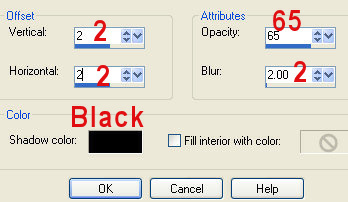
8. Repeat Cutout but this time change the V & H to -2 (minus 2).
9. Image/Add border - 4px - symmetric - using a medium colour from your graphic.
10. Image/Add border - 2px - symmetric - white.
11. Select border with Magic Wand and Flood Fill with Silver or Gold Pattern.
12. Effects/3d Effects/Drop Shadow - using these settings:

13. Repeat Drop Shadow but this time change the V & H to -3 (minus 3).
14. Image/Add border - 40 px - using your chosen medium colour.
15. Select border with Magic Wand.
16. Effects/Plugins/Eye Candy 4000/Swirl - using these settings:

17. Selections/Select none.
18. Layers/Load-Save Mask/Load Mask from disk. (click o.k. on the pop up window). Make sure you select Mask 62 and use these settings:
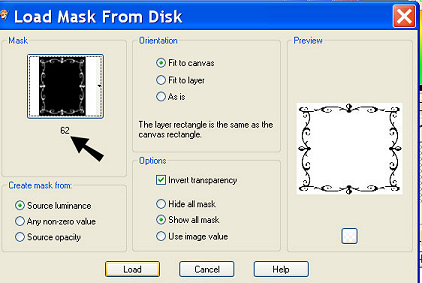
19. Click on Load.
20. Layers/Merge/Merge Group.
21. Layers/New Raster Layer.
22. Placing your chosen medium colour in the Foreground and a very light colour in the Background of the Materials Pallet, click on Gradient - using these settings:
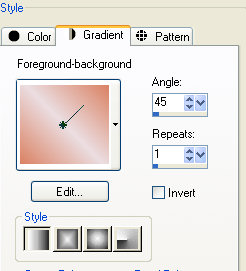
23. Flood Fill the New Layer with the Gradient.
24. Layers/Arrange/Send to bottom.
25. Effects/Plugins/FM Tile Tools/Blend Emboss - using these settings:
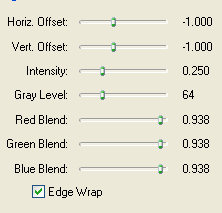
26. Repeat Blend Emboss.
27. Layers/Merge/Merge All.
28. Change Gradient to Silver or Gold Pattern.
29. Image/Add border - 2px - symmetric - white.
30. Select border with Magic Wand and Flood Fill with Silver or Gold Pattern.
31. Selections/Select none.
32. Image/Add border - 4px - symmetric - using your chosen medium colour.
33. Image/Add border - 2px - symmetric - white.
34. Select border with Magic Wand and Flood Fill with Silver or Gold Pattern.
35. Selections/Select none.
36. Resize framed graphic if necessary, add your Watermark and you're done!
Another example:

Lea's example: